
Wood
Wood overview
Turn a flat veneer image into a material for your scene.
Updated for Matelume 2.0. Current release: Matelume 2.0 · 30 October 2026
One veneer sheet
Use a flat veneer scan, catalogue swatch or digital design you have the right to use. Wood represents one veneer sheet, not a floor or plank layout.
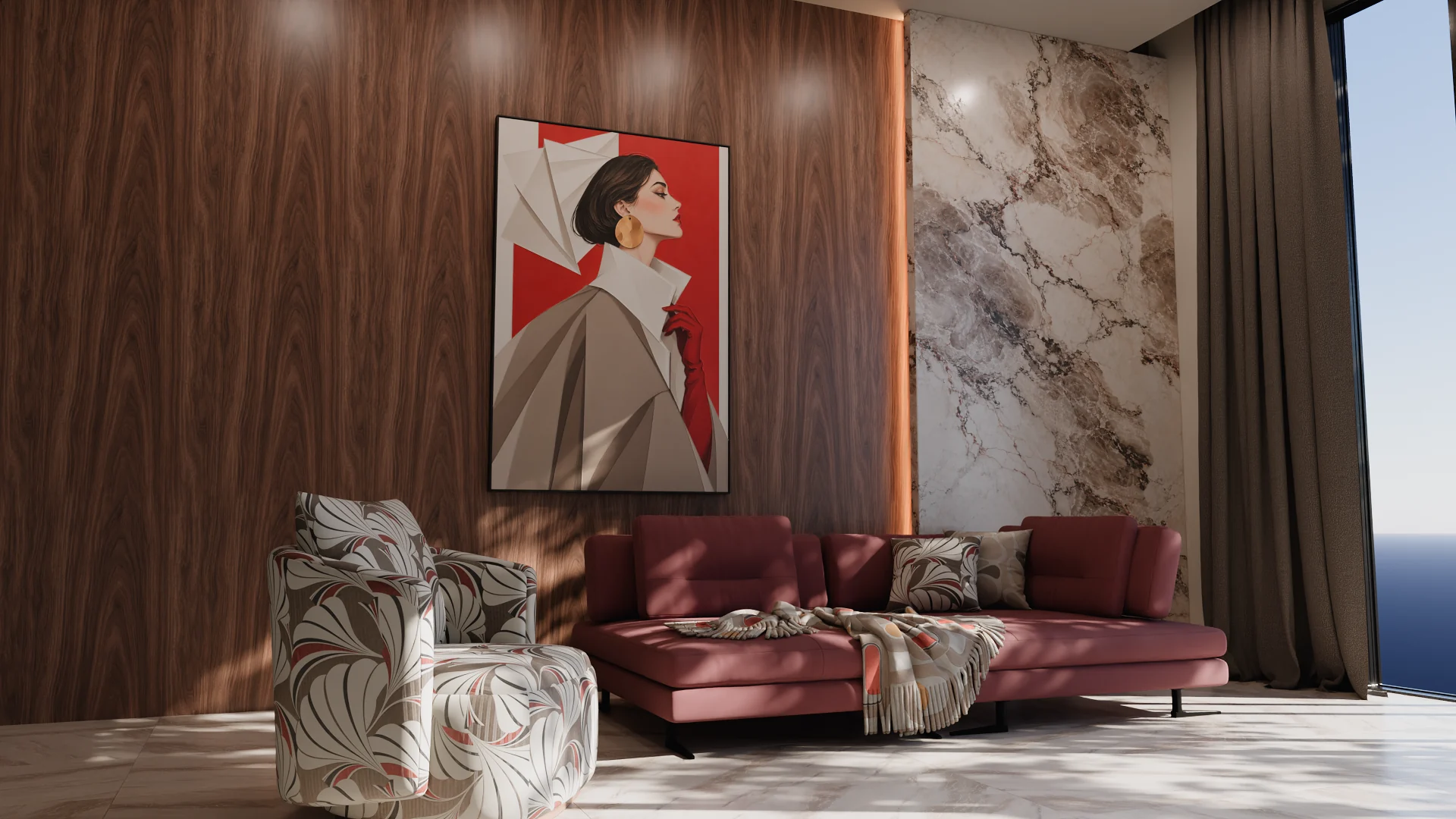
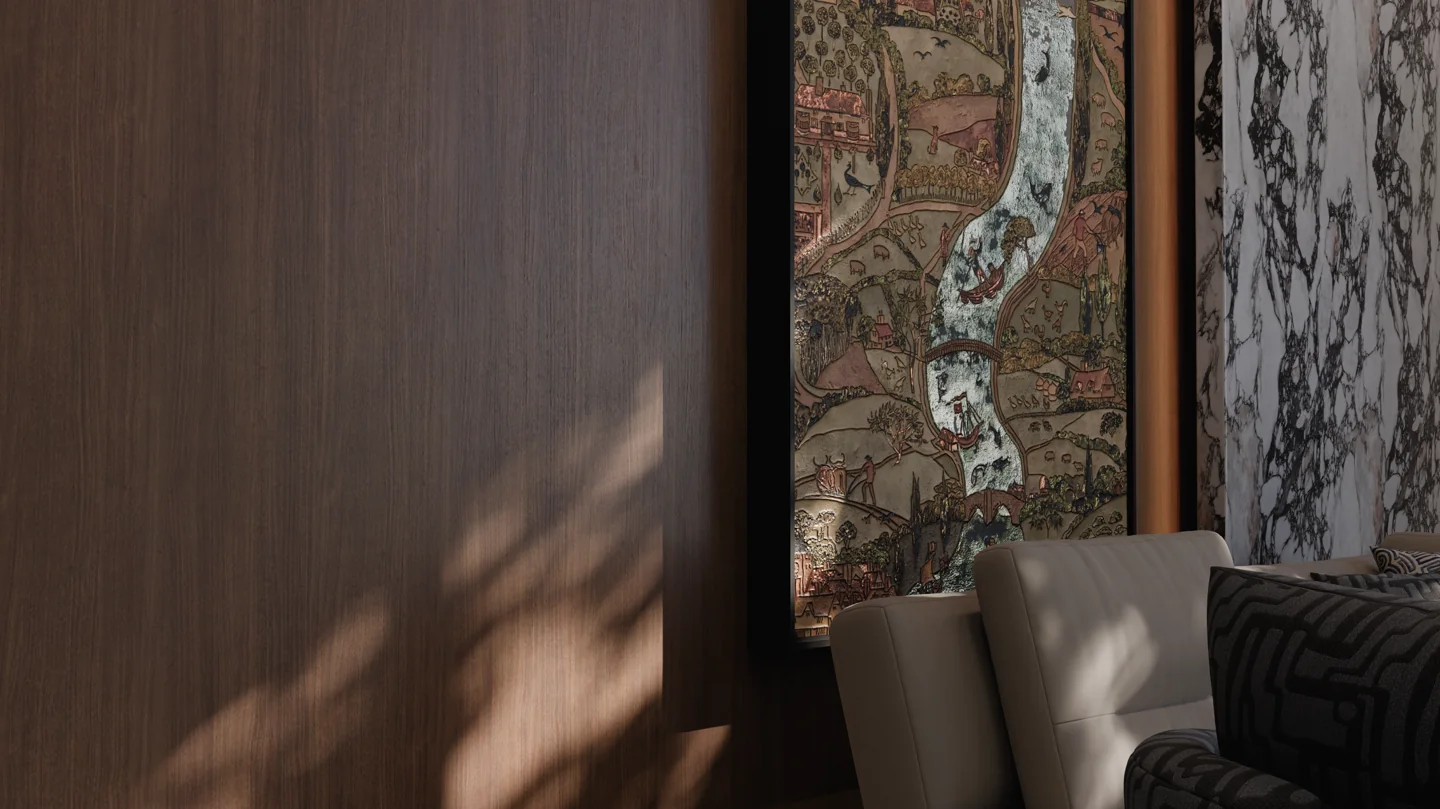
Build the surface
- Import your image and choose Wood.
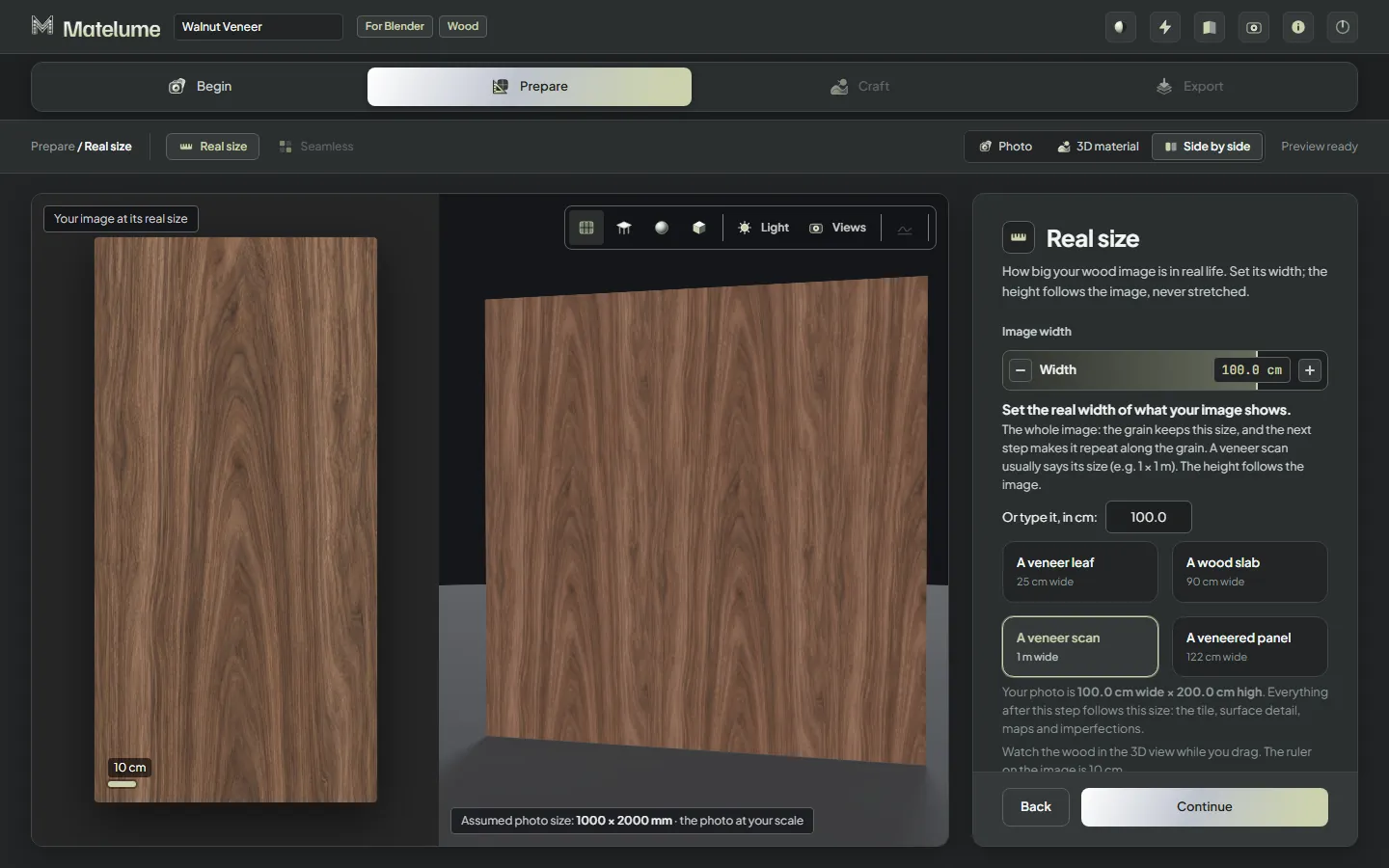
- Set the quality and real width.
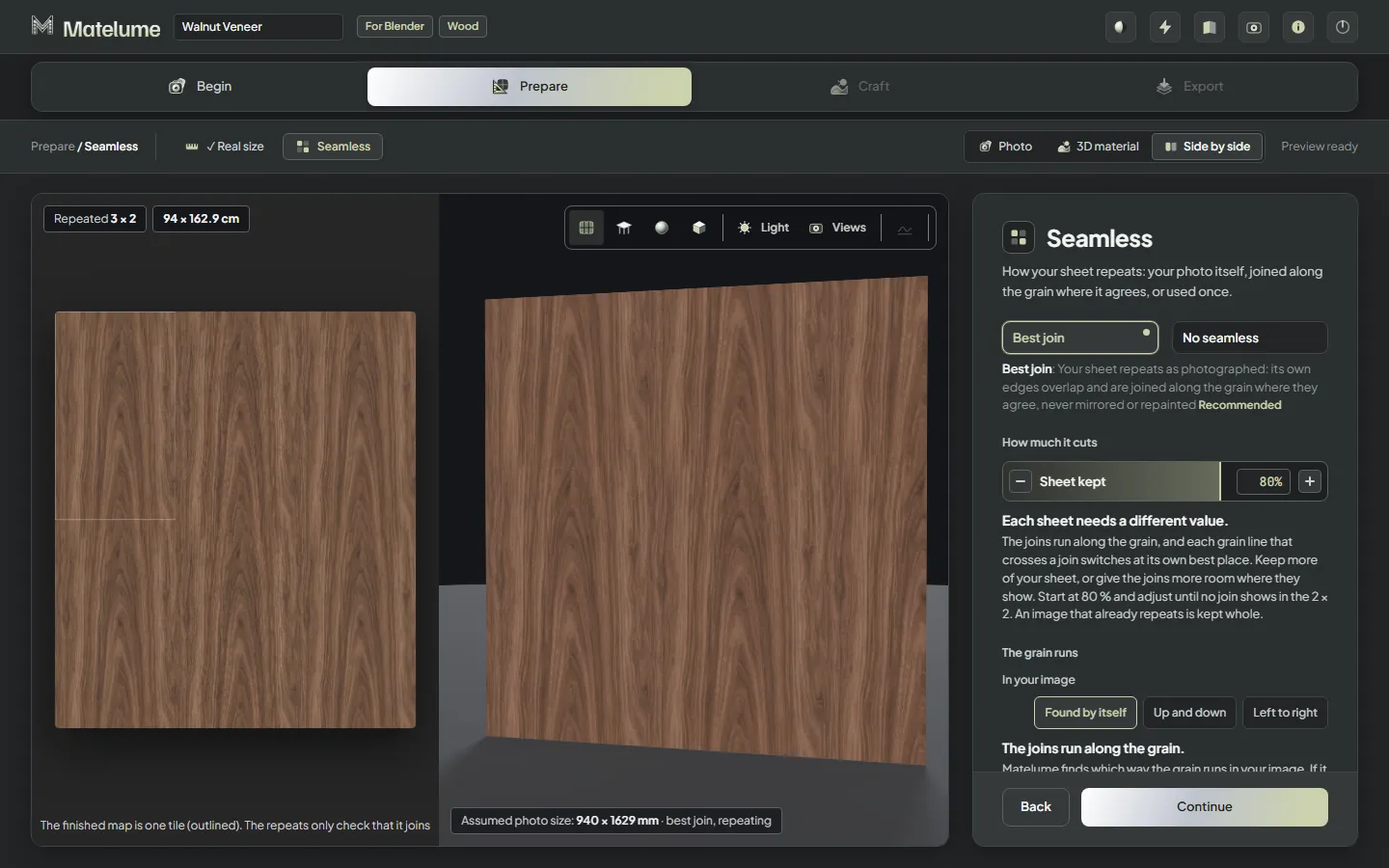
- Keep the sheet as it is or work on the seamless join along its grain. Inspect the repeat.
- Choose the surface relief and how different areas respond to light.
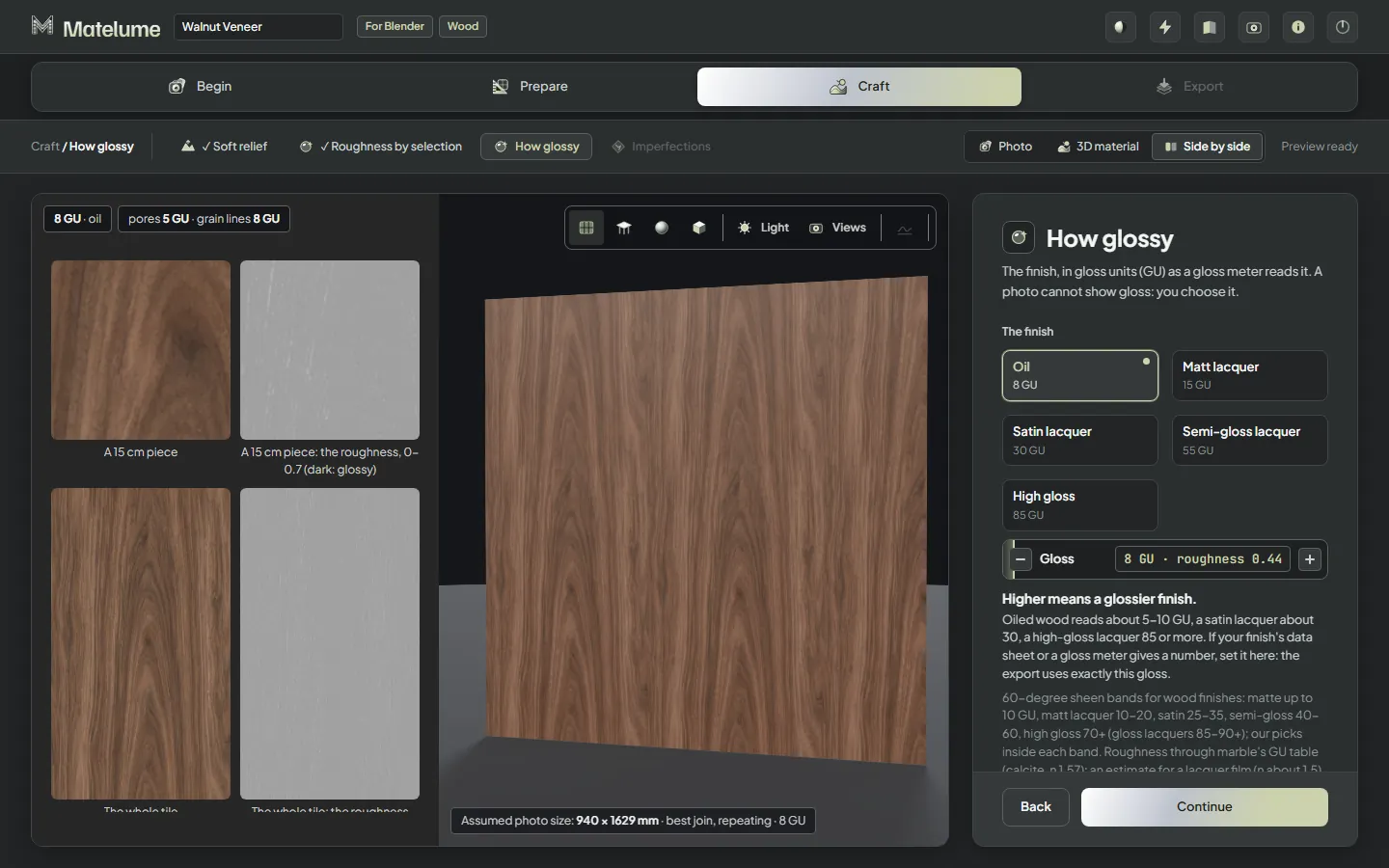
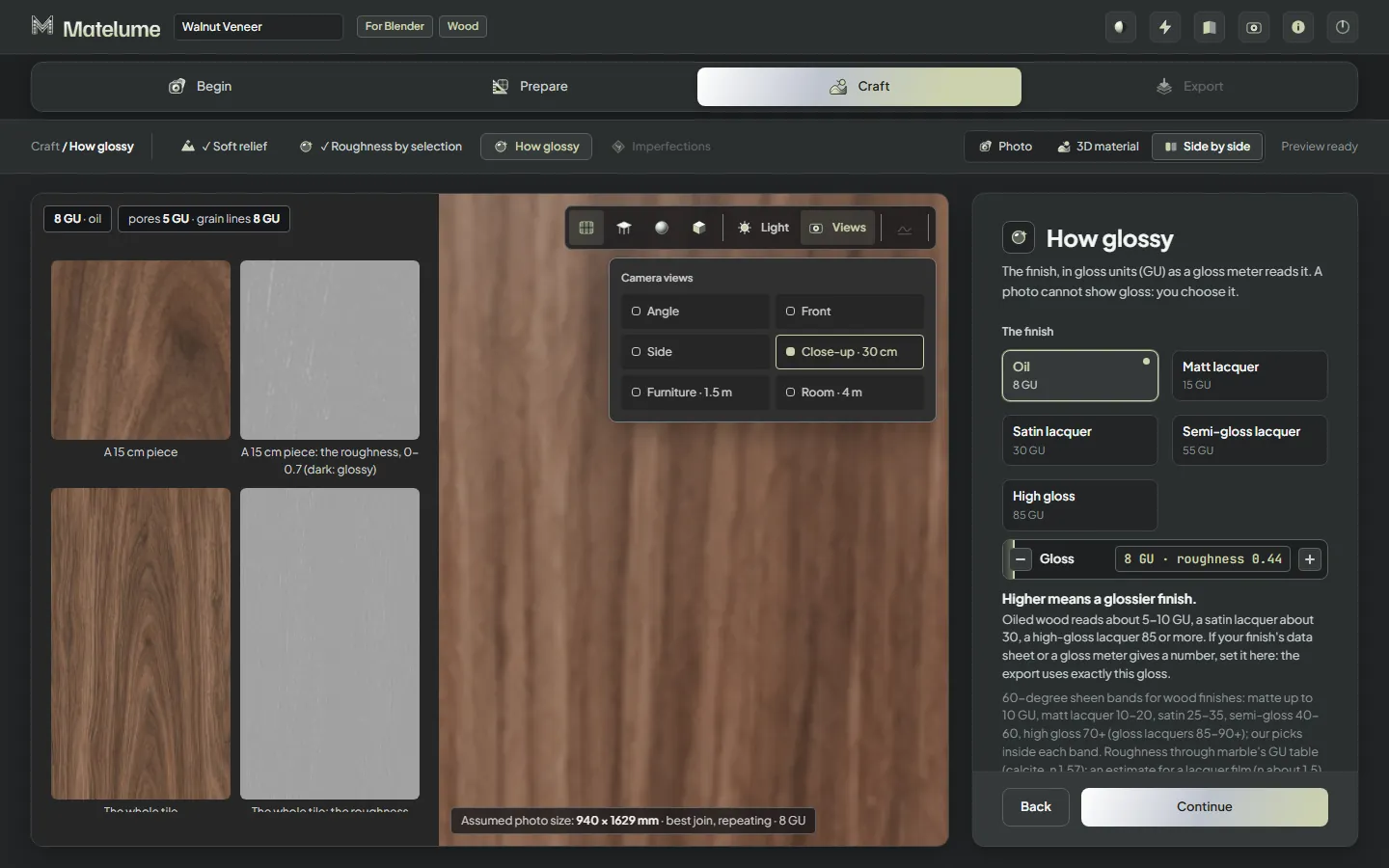
- Set the gloss and any imperfections, then export the maps.
Use it in Blender
With Blender add-on 0.2.2, Send to Blender places your wood on a wall panel, a table top or your selected object at real size. Wood import in 3ds Max, V-Ray and Corona has not been verified for this release.
Start from a colour
A colour start creates a single-colour image. The later controls can add finish, gloss and imperfections; they do not invent grain. Read about colour starts.
Wood in Matelume 2.0
Actual app screens showing the choices along the way. Open any image for a closer look.